Поделиться



 3_Forms_didactic_l1_v1.docx
Create a form from an existing table or query in Access
To create a form from a table or query in your database, in the Navigation Pane, click the table or query that contains the data for your form, and on the Create tab, click Form.
Access creates a form and displays it in Layout view. You can make design changes like adjusting the size of the text boxes to fit the data, if necessary. For more information, see the article on using the form tool.
Create a blank form in Access
1. To create a form with no controls or preformatted elements: On the Create tab, click Blank Form. Access opens a blank form in Layout view, and displays the Field List pane.
2. In the Field List pane, click the plus sign (+) next to the table or tables that contain the fields that you want to see on the form.
3. To add a field to the form, double-click it or drag it onto the form. To add several fields at once, hold down CTRL and click several fields, and then drag them onto the form at the same time.
Note: The order of the tables in the Field List pane can change, depending on which part of the form is currently selected. If you are not able to add a field to the form, try selecting a different part of the form and then try adding the field again.
4. Use the tools in the Controls group on the Form Layout Tools tab to add a logo, title, page numbers, or the date and time to the form.
5. If you want to add a wider variety of controls to the form, click Design and use the tools in the Controlsgroup.
Create a split form in Access
A split form gives you two views of the data at the same time — a Form view and a Datasheet view. Working with split forms gives you the benefits of both types of forms in a single form. For example, you can use the datasheet portion of the form to quickly locate a record, and then use the form portion to view or edit the record. The two views are connected to the same data source and are synchronized with each other at all times.
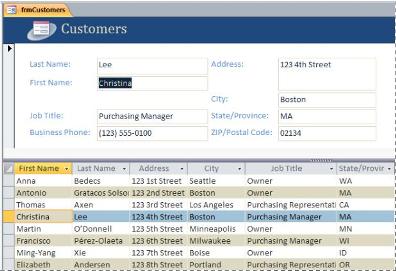
To create a new split form by using the Split Form tool, in the Navigation Pane, click the table or query that contains the data, and then on the Create tab, click More Forms, and then click Split Form.
Access creates the form and you can make design changes to the form. For example, you can adjust the size of the text boxes to fit the data, if necessary. For more information on working with a split form, see the article on creating a split form.
Скачано с www.znanio.ru
Материалы на данной страницы взяты из открытых источников либо размещены пользователем в соответствии с договором-офертой сайта. Вы можете сообщить о нарушении.